


Close Menu
Tech Savvyed
  • Home
  • News
  • Artificial Intelligence
  • Gadgets
  • Apps
  • Mobile
  • Gaming
  • Accessories
  • More
    • Web Stories
    • Spotlight
    • Press Release

Subscribe to Updates

Get the latest tech news and updates directly to your inbox.

What's On
Heroes Of The Storm Gets First New Character In – Sep 12, 2026

Heroes Of The Storm Gets First New Character In – Sep 12, 2026

13 September 2026
Blizzard Announces Diablo V, Arriving Spring 2029

Blizzard Announces Diablo V, Arriving Spring 2029

12 September 2026
Forever – Sep 12, 2026

Forever – Sep 12, 2026

12 September 2026
Facebook X (Twitter) Instagram
Tech Savvyed
SUBSCRIBE
  • Home
  • News
  • Artificial Intelligence
  • Gadgets
  • Apps
  • Mobile
  • Gaming
  • Accessories
  • More
    • Web Stories
    • Spotlight
    • Press Release
Tech Savvyed
Home»News»You don’t need a document scanning app. Your iPhone has you covered
News

You don’t need a document scanning app. Your iPhone has you covered

News RoomBy News Room15 August 20263 Mins Read
You don’t need a document scanning app. Your iPhone has you covered
Share
Facebook Twitter Reddit Telegram Pinterest Email

Whether you are trying to keep your invoices organized for tax season or just want a digital backup of important papers, scanning documents on your iPhone is one of those small habits that pays off later. 

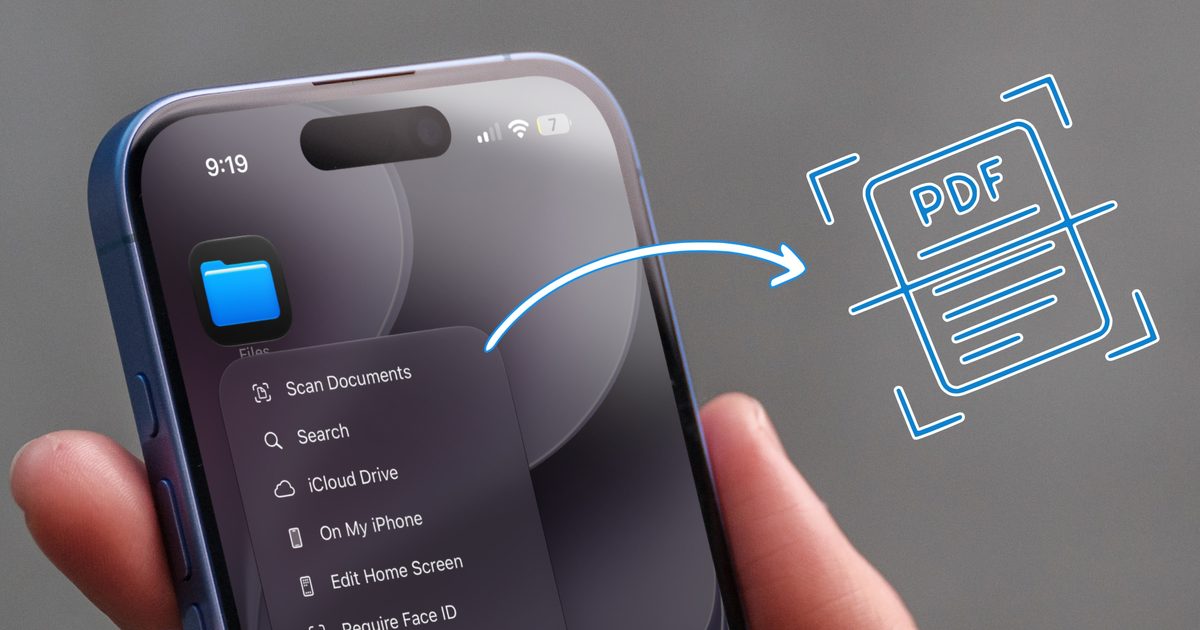
That’s why document scanning apps have become so popular on the App Store. But what most people don’t realize is that you do not need to download a single third-party scanner app. Your iPhone already has several built-in tools that do the job well, and today I will show you how to use them.

Scan documents using the Notes app

If Apple Notes is your main repository of notes and documents, you will be happy to know that you can scan your invoices directly inside the Apple Notes app. It gives you two ways to scan a document, and honestly, either one works great depending on what you are trying to do. 

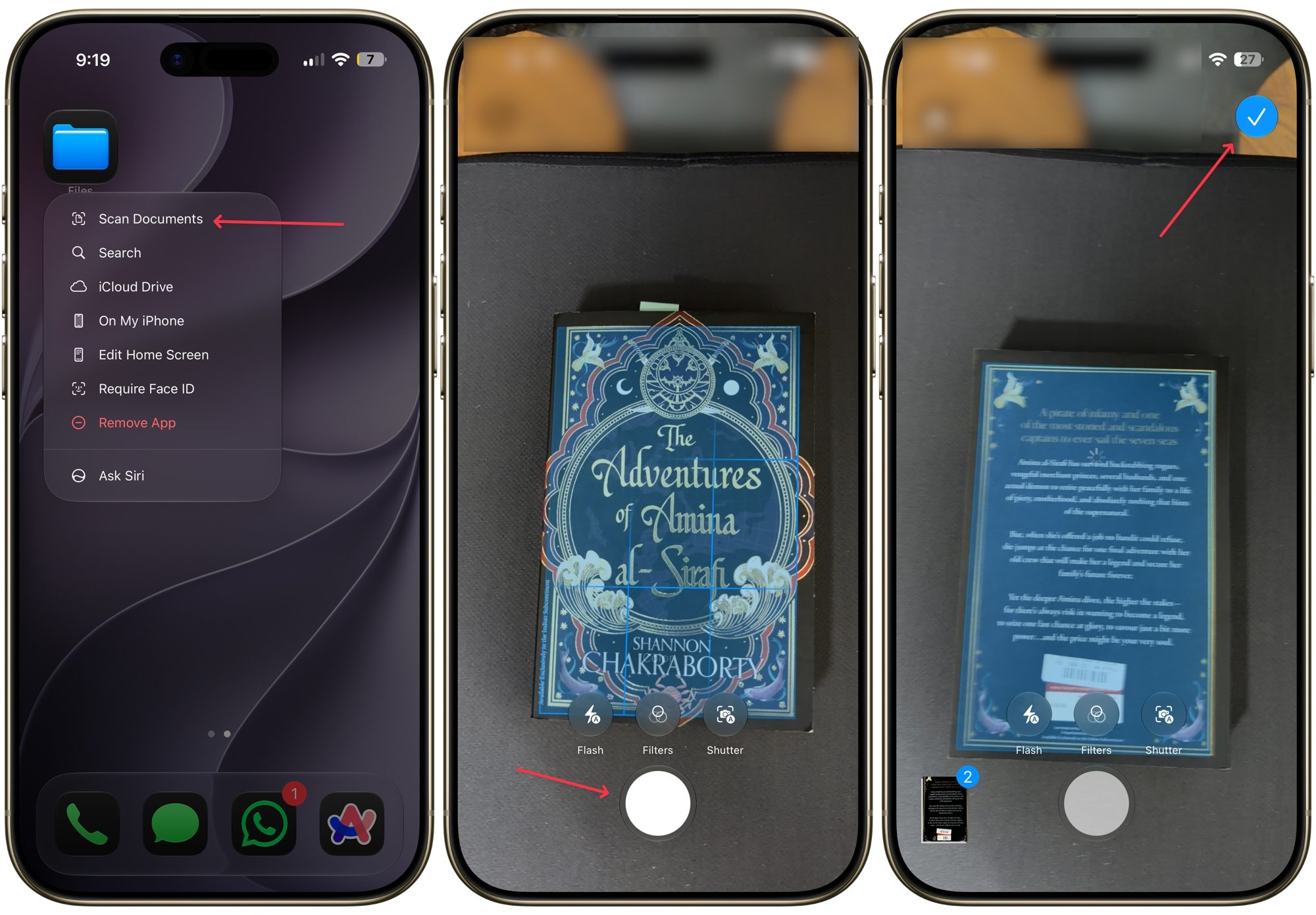
If you just want to scan something without worrying about which note it lands in, long-press the Notes app icon on your Home Screen and tap Scan Document. This launches the built-in scanner right away. From here, you can either let the app automatically detect your document’s edges and scan it, or tap the shutter button to capture it manually.

If you aren’t happy with how it turned out, you can use the Retake button to try again. Once the scan looks good, you can fine-tune the boundary by dragging the corner handles. If you have multiple pages to scan, repeat this same process for each one. 

adjusting-scan-on-iphone

When you are all done, tap the yellow checkmark button, and the app will bundle the pages into a single PDF and drop it into a new note. If you would rather have separate files instead of a combined PDF, tap the button after each individual scan instead of waiting until the end. 

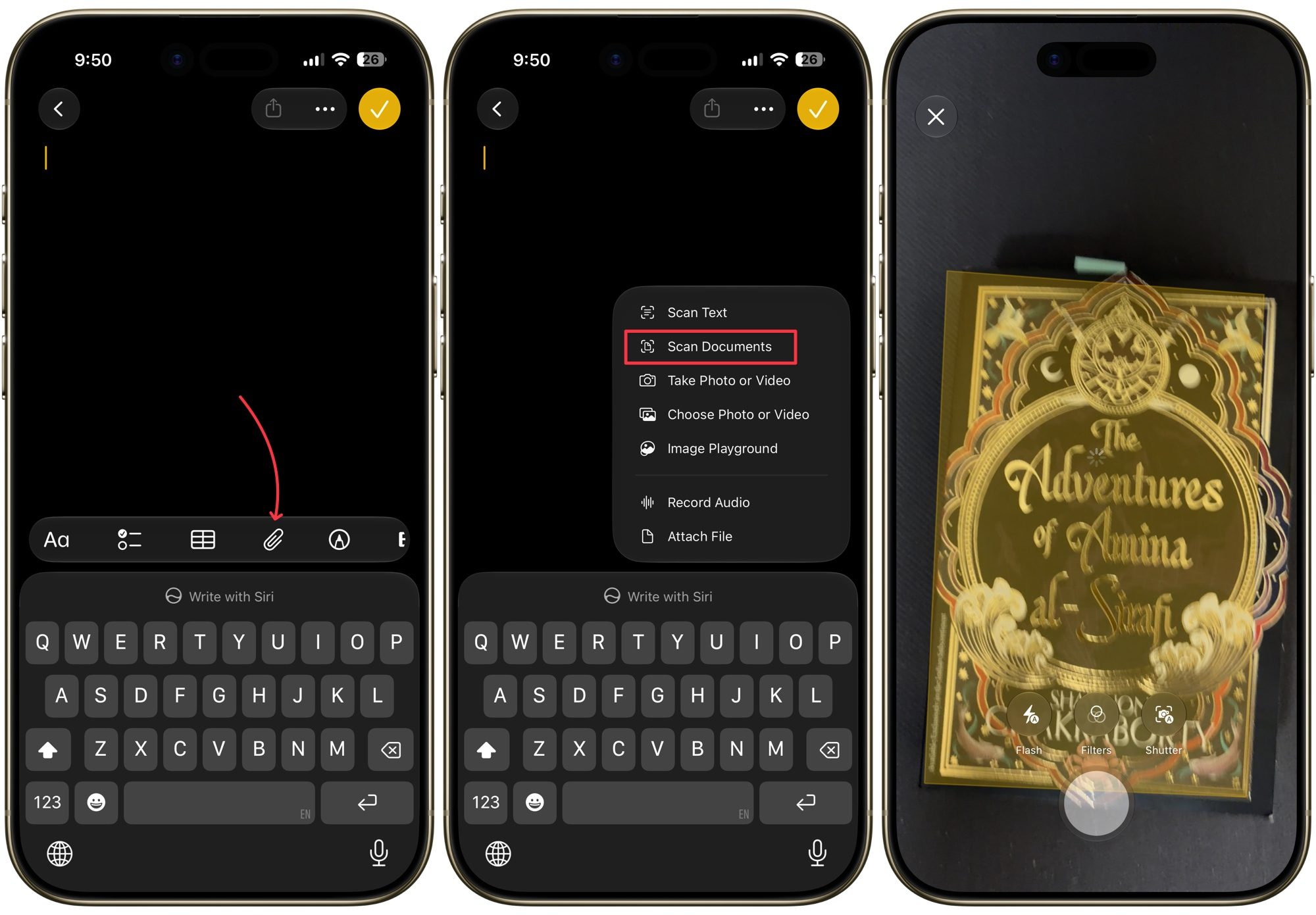
If you want to save a document inside a specific note, you can do that too. Just open the note where you want to save the scanned document and tap the paperclip attachment icon in the keyboard toolbar. Now, tap the Scan Documents button and follow the steps to scan your documents. 
scanning-documents-inside-a-note

Scan documents using the Files app

The Files app follows a very similar routine, and honestly, it might be the better home for your scans if you are trying to keep things organized by folder. Long-press the Files app icon on your Home Screen and choose Scan Documents to jump straight into the scanner. 
scanning documents via files app

From here, everything works the same way as it did in Notes. You capture the page, adjust the corners if needed, and repeat for as many pages as you need. The only extra step here is that once you tap Save, you will need to pick exactly which folder you want the file saved to before confirming in the top-right corner.

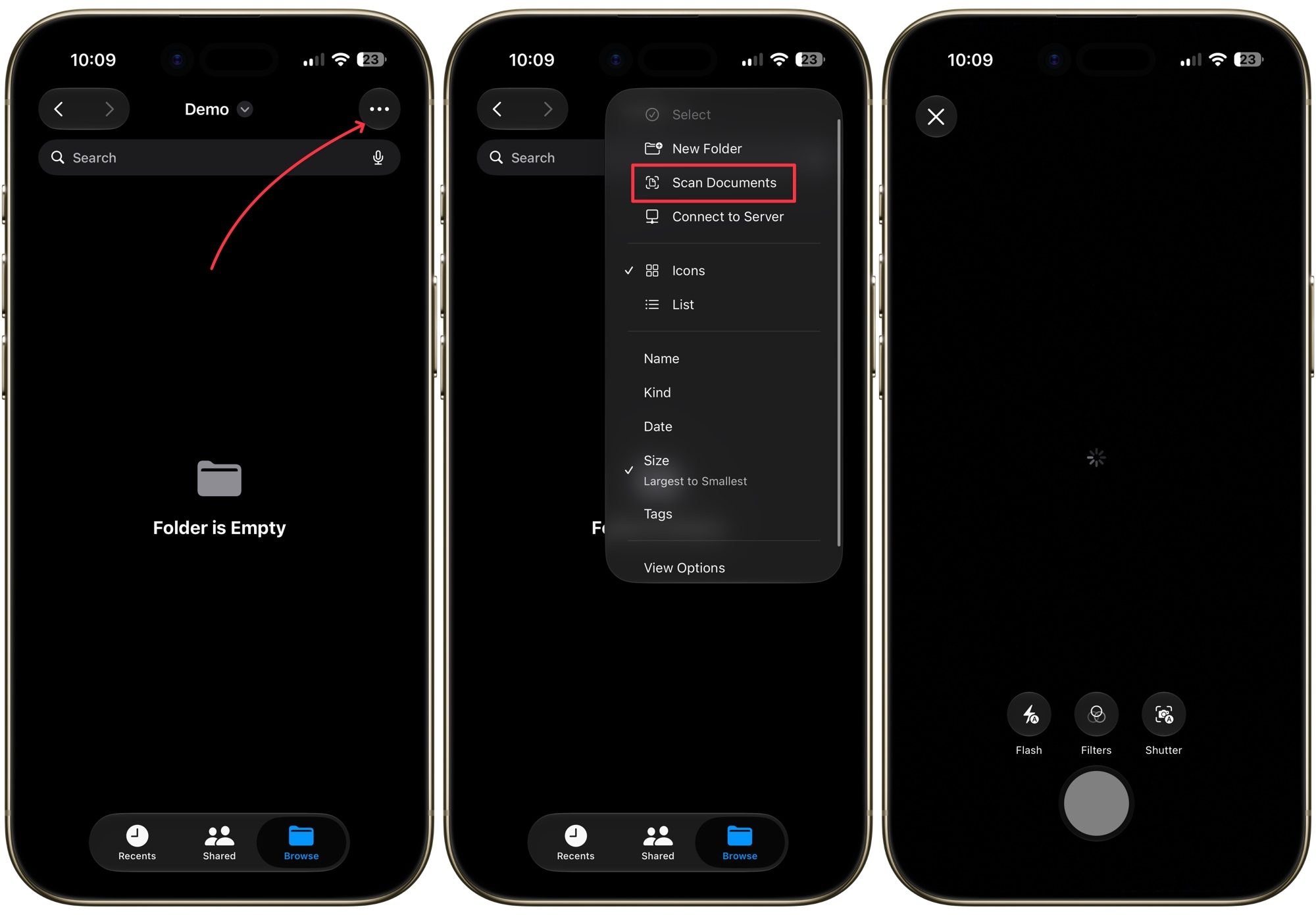
If you already know exactly where you want the scan to live, there is an even faster route. Open that specific folder inside the Files app, tap the three-dot menu in the top right corner, and select Scan Documents. Your file will save directly into that folder without any extra navigating.
scanning documents inside a folder

Scanning documents is easy

Personally, I use the Files app to scan and save invoices and documents. Each type of document has its own folder, so everything is neatly organized and I can quickly find them. If you have been paying for a third-party app until now, I highly recommend you try the native option and see if you can remove a subscription from your list.

Share. Facebook Twitter Pinterest LinkedIn Telegram Reddit Email
Previous ArticleApple’s latest refurb drop brings cheaper MacBooks, iPhone 16 Plus, and Apple Watches
Next Article I switched from Windows to Mac after 25 years, and it’s the trackpad that converted me.

Related Articles

Soundcore Space 2 Pro headphones promise crystal-clear calls with Anker’s new AI chip

Soundcore Space 2 Pro headphones promise crystal-clear calls with Anker’s new AI chip

3 September 2026
Xbox Cloud Gaming is about to become a lot more appealing to casual gamers with a new pay-as-you-go option

Xbox Cloud Gaming is about to become a lot more appealing to casual gamers with a new pay-as-you-go option

3 September 2026
Lenovo reveals iMac rival that upstages Apple with more goodies at a lower price

Lenovo reveals iMac rival that upstages Apple with more goodies at a lower price

3 September 2026
Motorola’s new Edge 70 Plus packs a 200MP camera and a massive battery

Motorola’s new Edge 70 Plus packs a 200MP camera and a massive battery

3 September 2026
We got GTA VI limited-edition DualSense controllers before GTA VI

We got GTA VI limited-edition DualSense controllers before GTA VI

3 September 2026
Anker unveils smarter chargers and power banks built to fight heat and battery degradation

Anker unveils smarter chargers and power banks built to fight heat and battery degradation

3 September 2026
Demo
Stay In Touch
  • Facebook
  • Twitter
  • Pinterest
  • Instagram
  • YouTube
  • Vimeo
Don't Miss
Blizzard Announces Diablo V, Arriving Spring 2029

Blizzard Announces Diablo V, Arriving Spring 2029

By News Room12 September 2026

This morning during BlizzCon’s opening ceremony, Blizzard announced Diablo V, set a half-century after the…

Forever – Sep 12, 2026

Forever – Sep 12, 2026

12 September 2026
Everything Announced At The BlizzCon 2026 Opening Ceremony

Everything Announced At The BlizzCon 2026 Opening Ceremony

12 September 2026
Reforged Gets A New Campaign Today – Sep 12, 2026

Reforged Gets A New Campaign Today – Sep 12, 2026

12 September 2026
Tech Savvyed
Facebook X (Twitter) Instagram Pinterest
  • Privacy Policy
  • Terms of use
  • Advertise
  • Contact
© 2026 Tech Savvyed. All Rights Reserved.

Type above and press Enter to search. Press Esc to cancel.