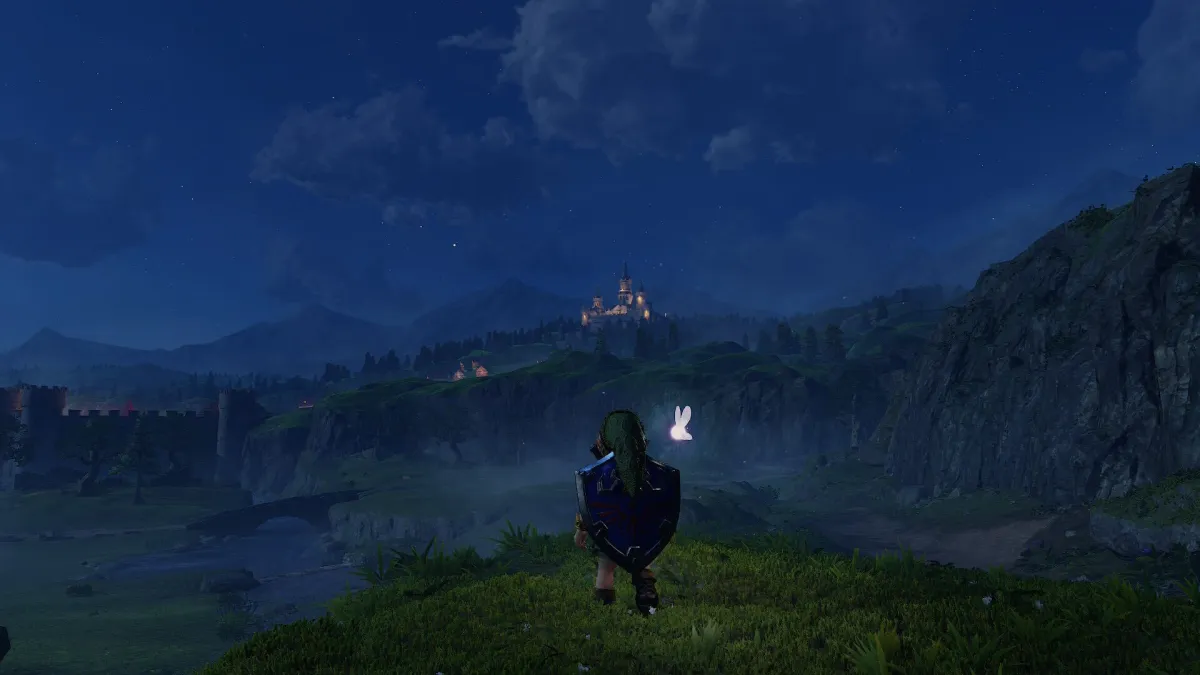
The Legend of Zelda: Ocarina of Time hit Switch 2 today, and, as Kyle Hilliard pointed out in our review, it is pretty excellent. Along with its remarkable visual upgrade, the new Switch 2 remake of Ocarina of Time adds quality-of-life improvements and modernizes the control scheme. As part of that, Nintendo has added the ability to jump and sprint. While that works well to make the game feel new, I quickly realized it sometimes clashes with another new improvement: a free camera controlled by the right stick. Holding down the sprint button to get through areas as fast as possible can make it tricky to keep the camera where you want it, but thankfully, if you have the Switch 2 Pro Controller, there’s an easy fix.
After hours of running around, I was awestruck by the level of detail and updates, but I found myself constantly fighting with the camera, or at the very least, needing to take a strange claw-style grip to be able to direct the camera with the right stick, while holding down the A button to sprint. If you’re a casual Switch 2 player, you might not have even noticed the back buttons on the Pro Controller, or you just have no idea what they do. Those buttons can be remapped on a per-game basis and it’s a simple process. Everyone has their own preferences, but, for example, for high-mobility shooters, I like remapping one of those to reload and one to jump. I’ve never felt the need to remap in a Zelda game, but after feeling the need to do so with The Legend of Zelda: Ocarina of Time on Switch 2, I might do so going forward.
The default in-game controls for The Legend of Zelda: Ocarina of Time on Switch 2
Remapping Your Switch 2 Pro Controller For Ocarina of Time
If you, like me, struggle to comfortably steer the new free camera while running through hallways, towns, dungeons, and, yes, Hyrule Field, you might want to consider remapping your controller. As you can see in the above image, the placement of Jump and Dash on the face buttons can make it difficult to simultaneously control the camera and sprint. This isn’t typically a problem in most modern games, as clicking the right stick is often a toggle to sprint, but in The Legend of Zelda: Ocarina of Time for Switch 2, you need to hold the button.
If you have the Nintendo Switch 2 Pro Controller, copying one button’s functionality to the buttons on the back of the controller is simple. All you need to do is hold the Home button on the Switch 2 Pro Controller for a moment until the Switch 2 system menu appears on the right side. Along with Power Options and any Bluetooth audio devices you have available, there is also the option to map GL and GR, the controller’s back buttons on the left and right, respectively.
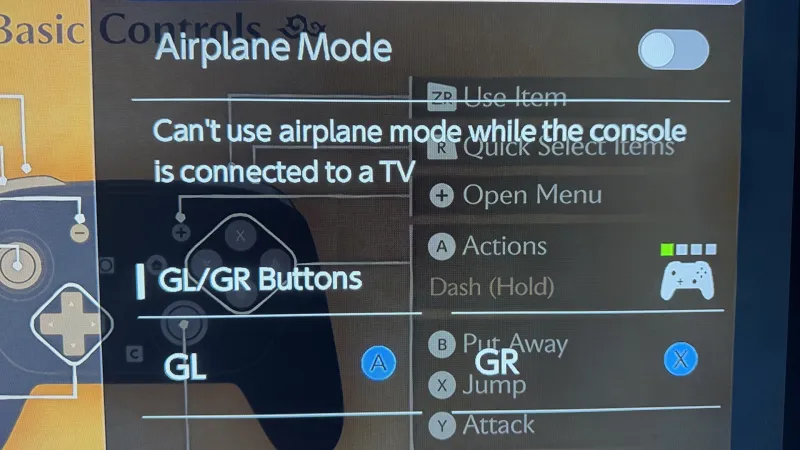
Navigate down the menu to the GL and GR, then select which one you’d like to map. It will ask you which button you want to assign to the one you selected. Everyone can choose whatever makes sense in their own head, but mapping A (Roll and Dash) to GL and X (Jump) to GR made the most sense to me. Now, while I’m using the Switch 2 Pro Controller, I can use my middle finger to hold the GL button to Dash around without removing my thumb from the camera-controlling right stick.
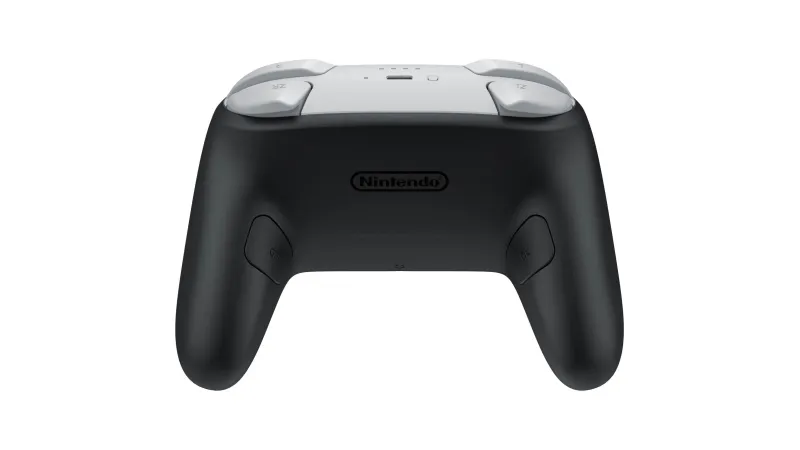
And the best part is that, since you’re not removing the functionality of the A or X buttons, you can still use them when it makes sense. For example, A also controls actions like opening up a treasure chest or door, and in my head, that feels like a face-button action, whereas rolling and dashing feel right mapped to the back buttons. The only downside is that, since this functionality is new for Switch 2 Pro Controllers, it isn’t available if you’re using the Joy-Cons or a Switch 1 Pro Controller. Also, it can make switching over to handheld mode challenging, as you don’t have access to the back buttons in that play style.
Even if you don’t have the ability to take advantage of this tip, either because you don’t own a Switch 2 Pro Controller or because you prefer playing in handheld mode, you should still absolutely play the Switch 2 remake of The Legend of Zelda: Ocarina of Time. To learn more about the experience and why it’s a must-play, head to our review.