



Phantom Blade Zero is out now for everyone as a console exclusive on PlayStation 5 and on PC via Steam and the Epic Games Store as well. If you missed it, it’s my favorite action game of the year so far, and you can read why in Game Informer’s Phantom Blade Zero review. That explains why I think you should check the game out; Game Informer’s list of Phantom Blade Zero tips and tricks will get you some key information I wish I had when I started the game; and this guide I wrote up about the requirements you need to get the best ending in Phantom Blade Zero will help you find all story-critical content in the game.
However, you’re looking for advice on which of the three visual modes Phantom Blade Zero offers you should use on your PS5. This here piece is for you.
Breaking Down Phantom Blade Zero’s Graphics Options
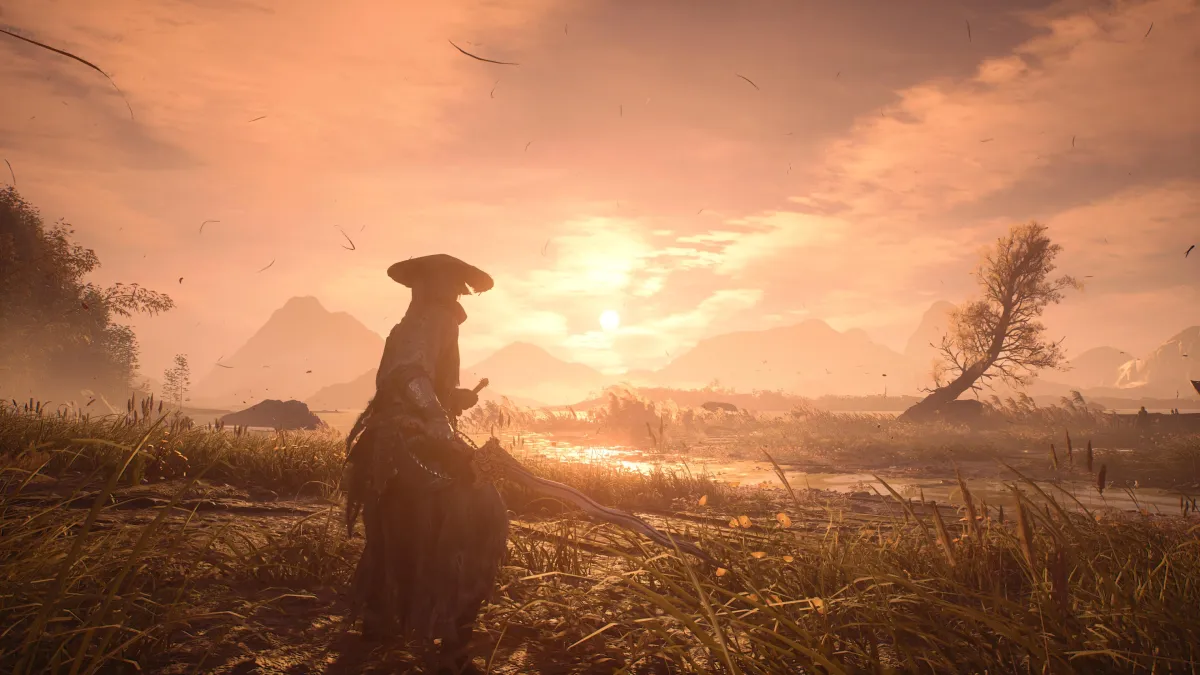
Phantom Blade Zero has three visual modes on PS5 Pro: Quality, Balanced, and Performance. I tested all three. My personal favorite was Balanced, which gives you an upscaled (checkerboarded) 4K resolution at 40 FPS, as long as you have a 120Hz TV with VRR. If you have a 120Hz TV, it likely has VRR because most major manufacturers include it with 120Hz. I like this mode because the upscaled 4K looks beautiful, just a hair less than native 4K, and if you aren’t someone super trained on those details, I’d wager you won’t notice the difference. The best part is that this mode offers 40 FPS gameplay, which, contrary to how math works, is halfway between 30 FPS and 60 FPS; I’m not kidding, look it up. As such, 40 FPS feels much smoother than 30 FPS, and you’re still getting crisp 4K resolution. It’s a win-win for me and my go-to mode when a game offers it.
That said, if you don’t have a PS5 Pro, you won’t see this Balanced mode.
The Performance mode offers an upscaled 2K resolution with a pretty locked 60 FPS. Phantom Blade Zero is an extremely fast, fluid action game, so I think many people will want the buttery smoothness of 60 FPS gameplay. If that’s you, pick the Performance mode. Sure, its resolution is lower, and it will look blurrier and less crisp than the other two modes, but if you aren’t switching back and forth often or looking at side-by-side images, you likely won’t notice.
Quality mode is native 4K resolution (absolutely beautiful, the best visual image you can get playing Phantom Blade Zero), but at 30 FPS… and for a game like this, I don’t think 30 FPS does it justice. I don’t really recommend this mode for combat, but if you’re just waltzing around Wulin, grabbing screenshots and such, turn it on and bask in the wonders of developer S-Game’s art team.
Note: There is an option for ray tracing on PS5 Pro. I tested all three graphics modes with it on and off and noticed zero performance changes or issues. So, use ray tracing – it’s nice!
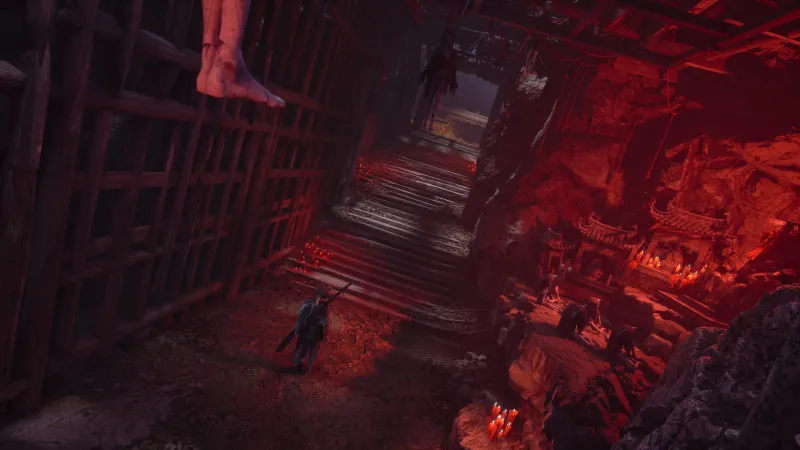
So, to recap:
- Quality Mode: Native 4K resolution at 30 FPS
- Balanced Mode: Upscaled 4K resolution at 40 FPS
- Performance Mode: Upscaled 2K resolution at 60 FPS
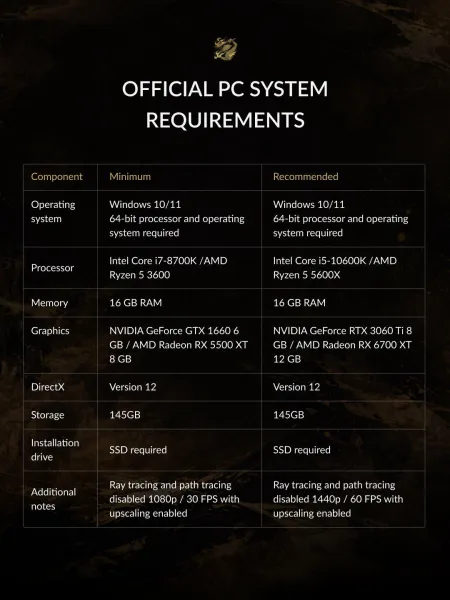
And, in case you missed it, below is an image of the PC system requirements and specs needed to play Phantom Blade Zero on Steam and the Epic Games Store:
In the meantime, read Game Informer’s Phantom Blade Zero review, then check out our list of Phantom Blade Zero tips and tricks we wish we knew before starting the game. Then check out our breakdown of the requirements to see the best ending in the game.