




For years, AI assistants have been siloed. You open ChatGPT, Claude, Gemini, or Copilot, type a prompt, get an answer, and move on. Anthropic’s new Claude Tag feature takes a different approach. Instead of making employees jump into a separate AI chat every time they need help, it brings Claude directly to where many teams already spend their day: Slack.
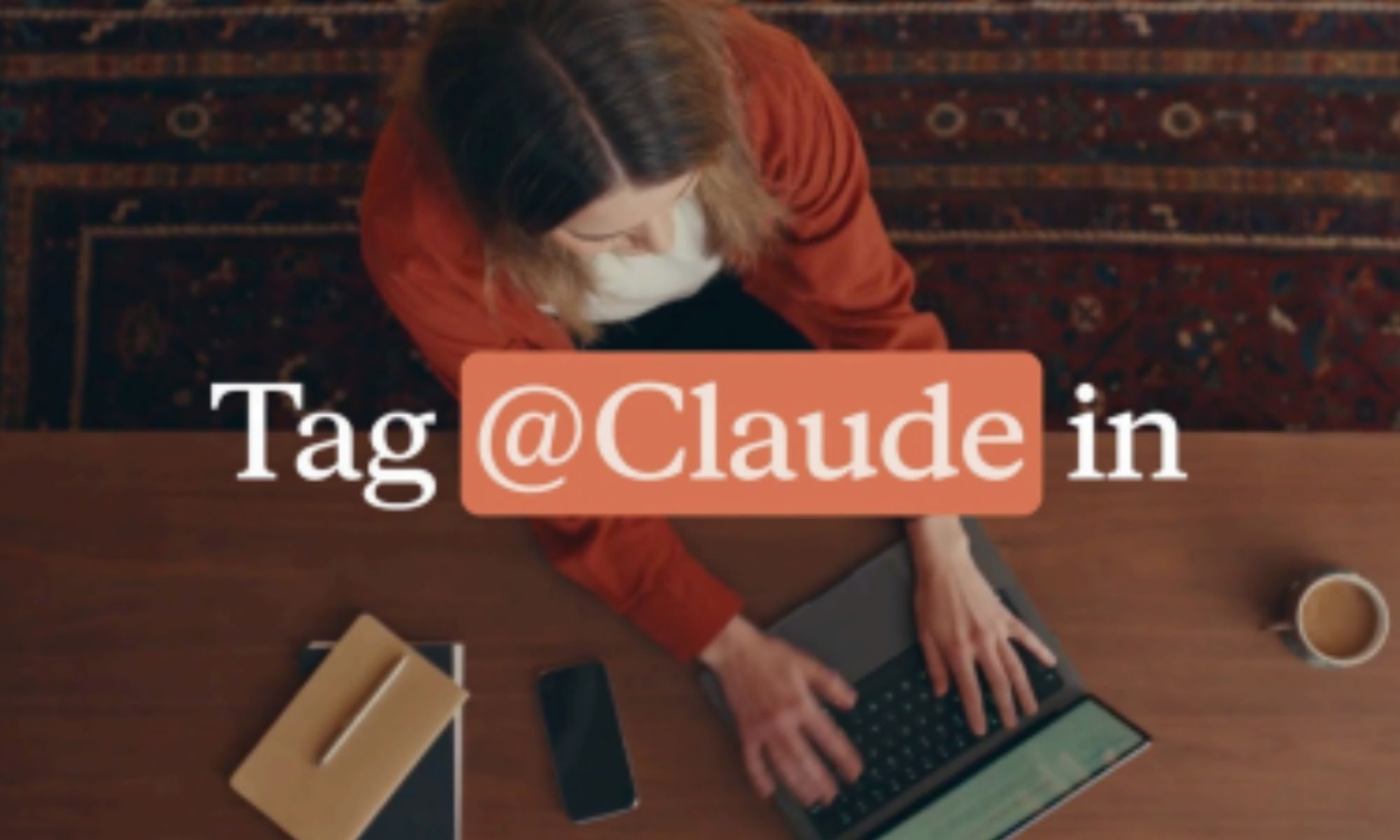
Add Claude to a channel, grant it access to needed tools, and tag @Claude for help — whether analyzing data, writing reports, reviewing code, or investigating incidents. But Claude Tag isn’t just another chatbot integration. Its key differentiator is that Anthropic positions it as a digital coworker for your team, enabling seamless collaboration where multiple users can jointly interact with the same AI within their work environment.
One AI to rule the channel (and hopefully the chaos)
What makes Claude Tag interesting isn’t that it can answer questions; it’s that it can ask them. Plenty of AI tools already do that. The bigger shift is Claude’s ability to serve as a shared, persistent participant within a Slack channel. Unlike other AI tools, Claude enables all team members to interact with a single instance, fostering collective visibility and continuity.
That means teammates can see what Claude is working on, continue tasks started by others, and build on previous conversations without constantly repeating context. Anthropic says Claude gradually learns the channel’s workflow and relevant projects if granted access to the right tools and data. That could mean spending more time simply asking Claude to do something.
How to set up Claude in Slack
If your organization has a Claude Enterprise or Claude Team subscription, getting started is relatively straightforward.
Step 1: Connect Claude Tag to your Slack workspace
Administrators first need to pair Claude Tag with the company’s Slack environment. Once connected, Claude can be added to specific channels where teams want AI assistance.
Step 2: Decide what Claude can access
This is arguably the most important step. Administrators choose which tools, datasets, and systems Claude can use. For example, a sales-focused Claude might gain access to CRM data and reporting tools, while an engineering-focused Claude could connect to repositories and development platforms. Anthropic says access can be tightly restricted to keep information isolated between teams.
Step 3: Set spending limits
Organizations can establish monthly usage budgets and channel-specific limits to keep costs under control. This gives teams room to experiment without worrying about unexpected AI bills showing up at the end of the month.
Step 4: Test Claude in a private channel
Before rolling it out company-wide, Anthropic recommends testing Claude in a private Slack channel. This allows administrators to verify permissions, tool access, and workflow behavior before broader deployment.
Step 5: Start assigning work
Once everything is configured, employees can simply tag @Claude and describe what they need. Claude then breaks the task into smaller steps, uses available tools where necessary, and eventually posts their results back into the Slack thread.
The most interesting feature might be what Claude does when nobody is talking to it
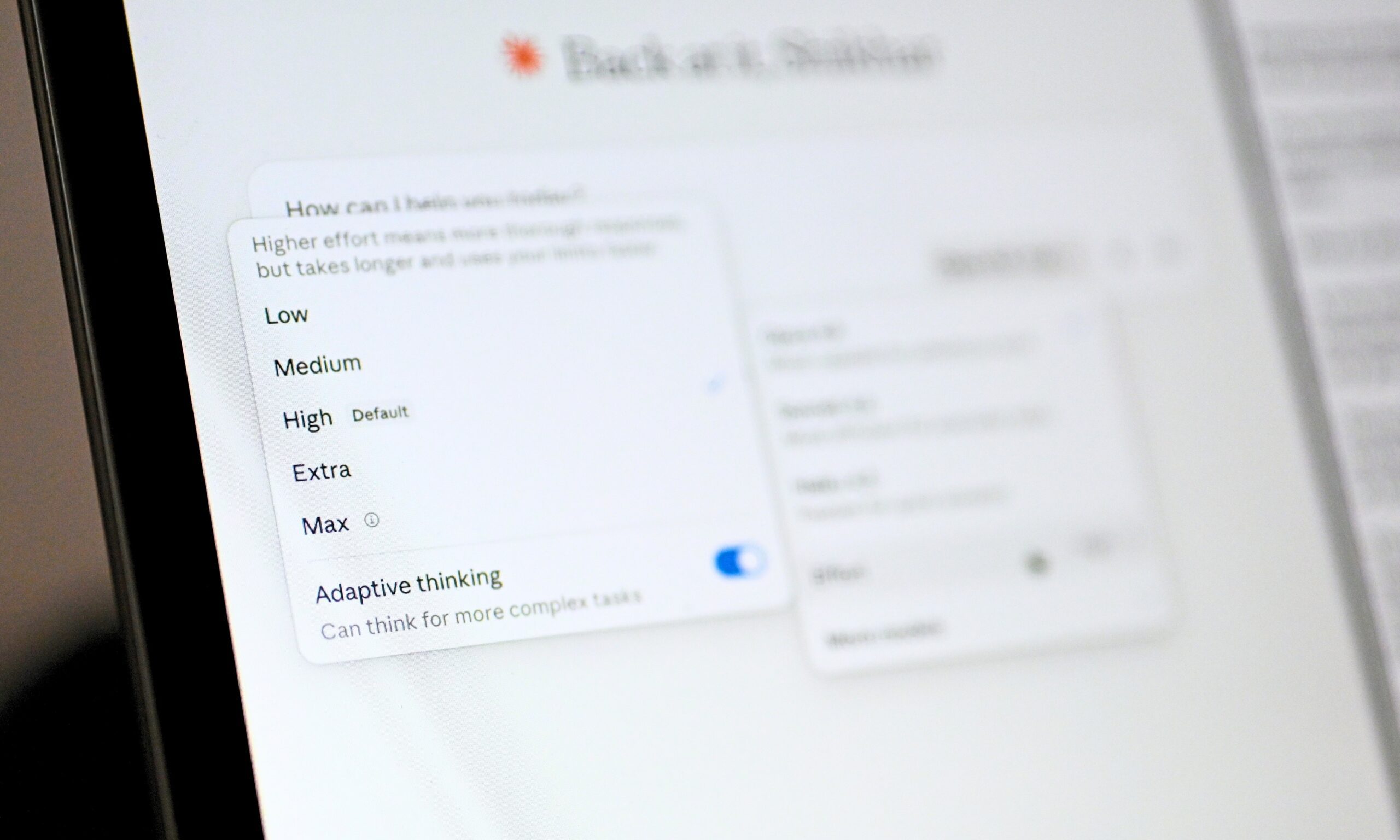
Most AI assistants are reactive; they wait for instructions. Claude Tag can be configured to be more proactive. With its optional “ambient” behavior enabled, Claude can monitor the channels and tools it has access to, surface potentially useful updates, flag unresolved issues, and follow up on tasks that appear to have stalled.
That’s a notable shift from the typical chatbot experience today. Instead of acting like a search engine that waits for prompts, Claude starts behaving more like a team member, keeping an eye on ongoing work. Whether that sounds helpful or mildly terrifying probably depends on how many Slack notifications you already receive.
Still, the broader trend is difficult to ignore. While many AI tools focus on chat interfaces, Claude Tag differentiates itself by embedding AI into collaborative workplace tools and acting as a delegate that works within the team’s workflow. And if that vision takes hold, workplace AI could soon mean more real collaboration—where @Claude becomes your team’s reliable problem-solver, not just another app to type into.