




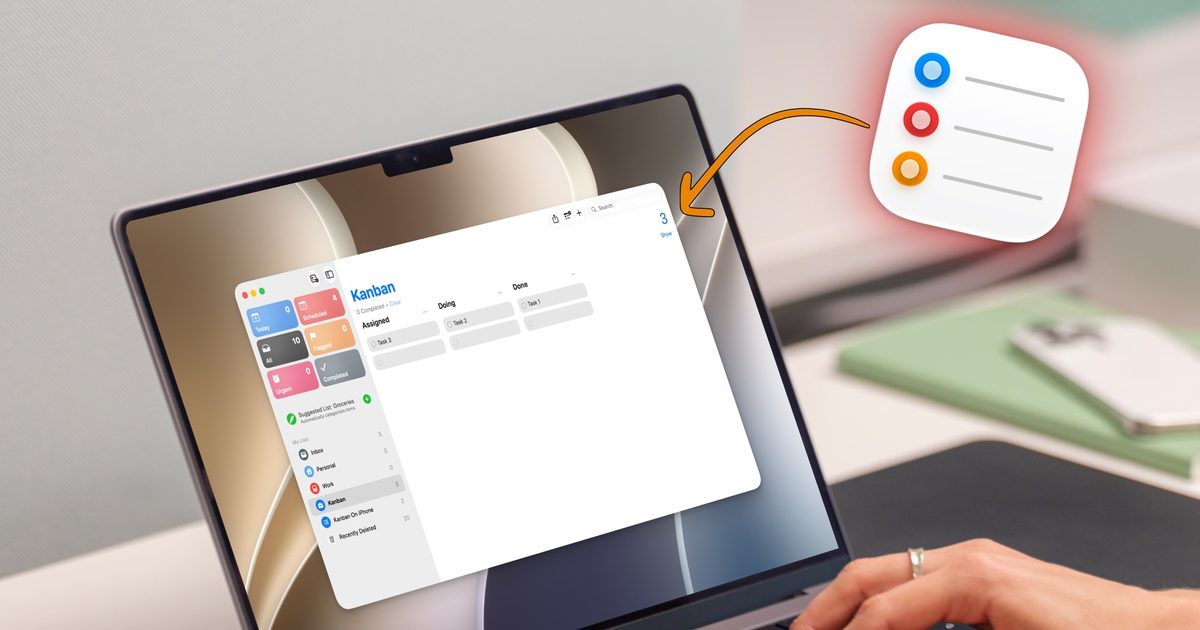
For the longest time, I used Apple Reminders only for capturing quick tasks. Thanks to its Siri integration, Reminders let me add tasks quickly so nothing would fall through the cracks. However, when it came to managing big projects, I always moved to a more powerful task manager like OmniFocus or Things 3.
That changed the day I stumbled onto the Column view. Apple added this feature with the iOS 17 and macOS Sonoma updates, and somehow I completely missed it. But once I discovered and got the hang of it, Reminders finally started to feel like a real project management tool instead of a glorified sticky note.
So what is a Kanban board?
If you have never used one, a Kanban board is a visual way to track how your work is moving along. Instead of one long list, you get columns that represent different stages of a task, and cards that move across those columns as the work progresses.
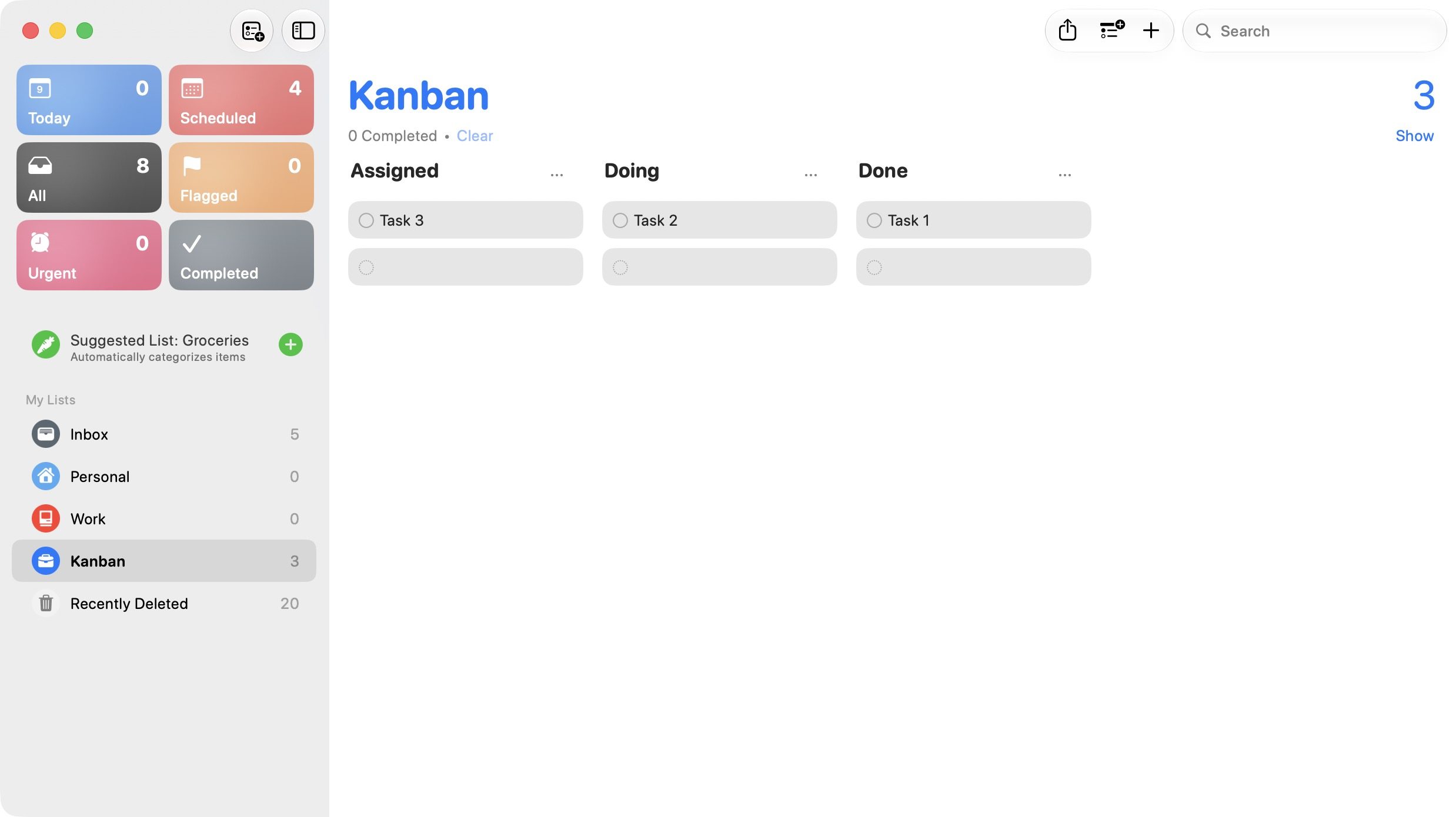
A simple setup might consist of only three columns: Assigned, Doing, and Done. You start a task in Assigned, drag it to Doing when you start working, and slide it into Done when you finish the task.
This helps you keep a visual track of all your tasks and makes managing projects so much easier than following a single daunting task list. I will show you how you can also set it up to manage your projects using Apple Reminders.
The trick is hiding inside sections
Reminders does not call this feature Kanban in the app, which is probably why so many people, including me, might miss it. The magic comes from combining two features Apple added with iOS 17: Sections and the Columns view. Sections let you break a single list into labeled groups, and the Columns view turns those groups into a board you can actually work with.
Setting up a Kanban board on Mac
While this feature works on iPhone, iPad, and Mac, it really shines on the iPad and the Mac, as you get more space for the board. So, let’s start with setting up the Kanban board on the Mac.
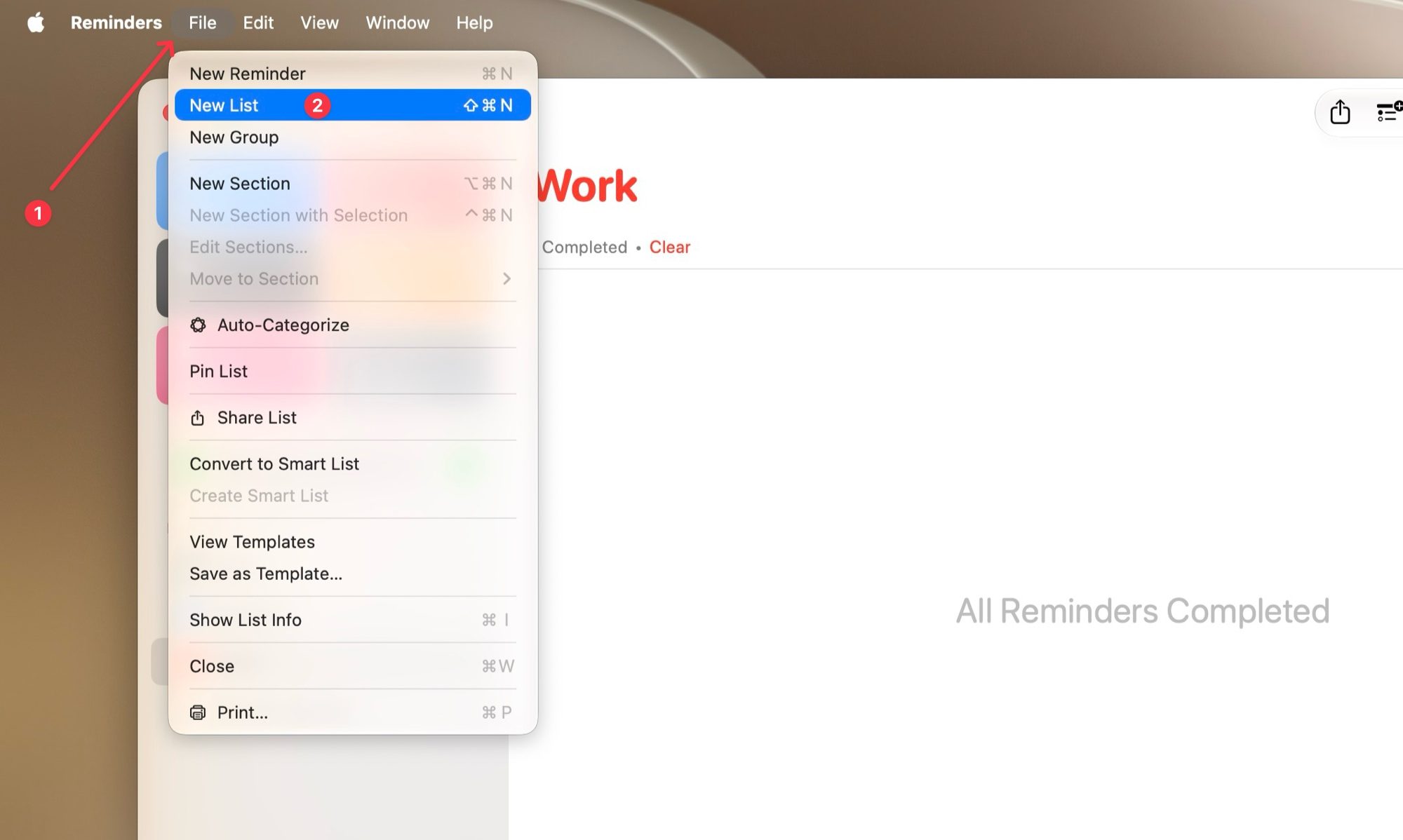
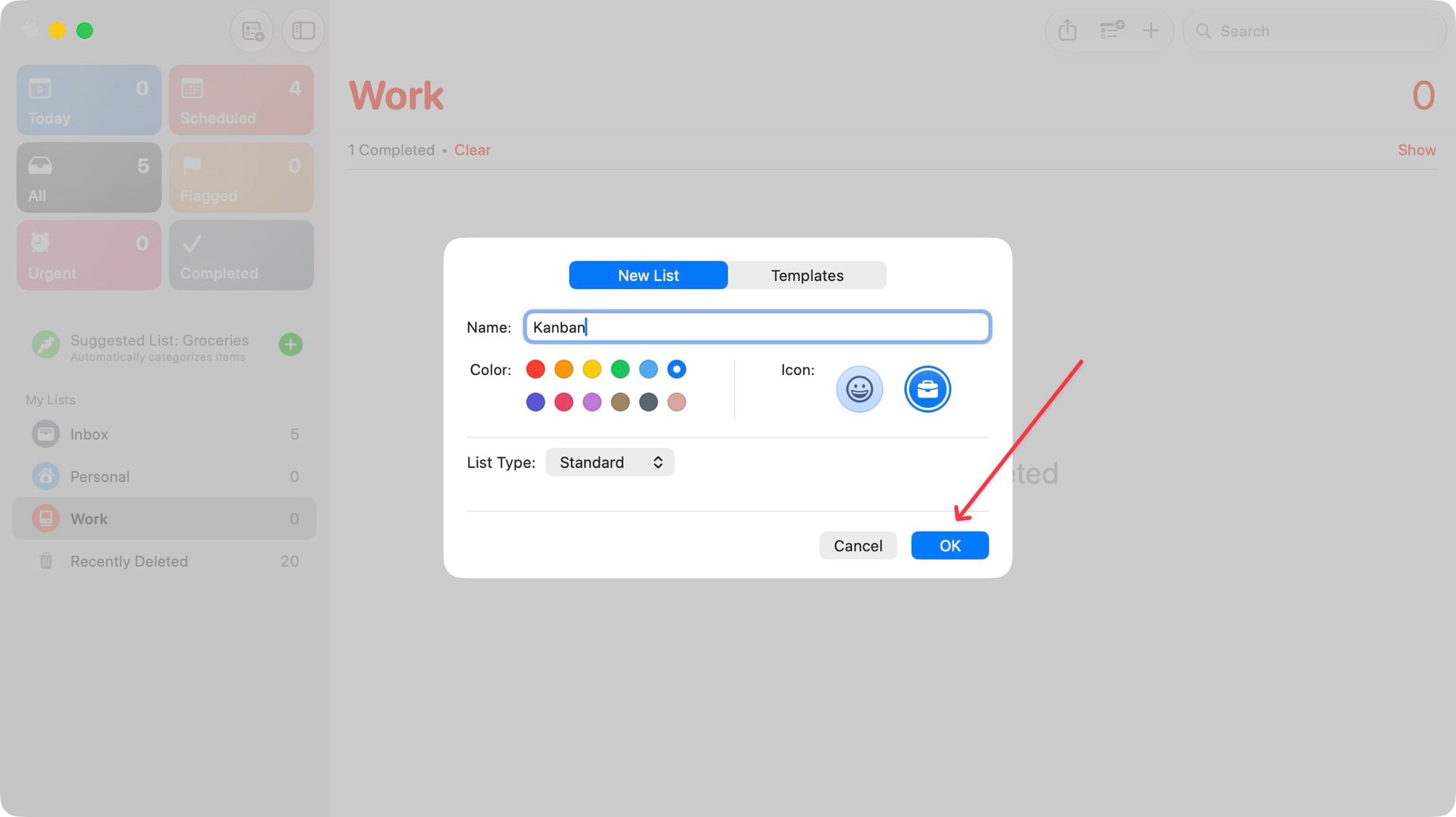
Launch Reminders and go to File → New List or hit the keyboard shortcut ⌘⇧N to create a new board. Enter a name, assign an icon, and tap the Okay button to create it.
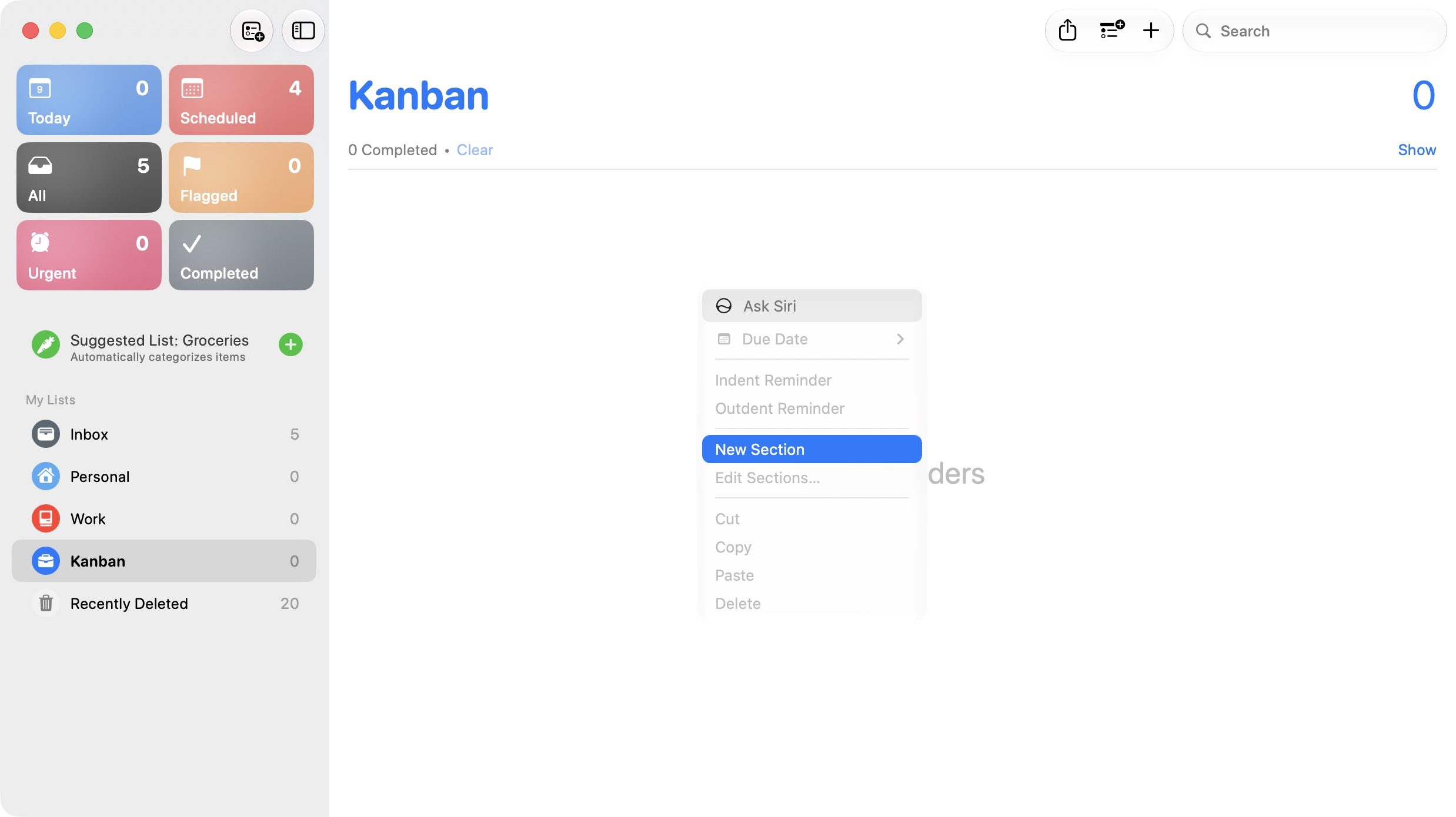
To add a section, you can either use the keyboard shortcut ⌘⌥N or right-click on an empty space inside your list and choose Add Section. Name each section and hit Return to save.
Add your tasks under the right sections, then click the View menu at the top and choose the Columns option.
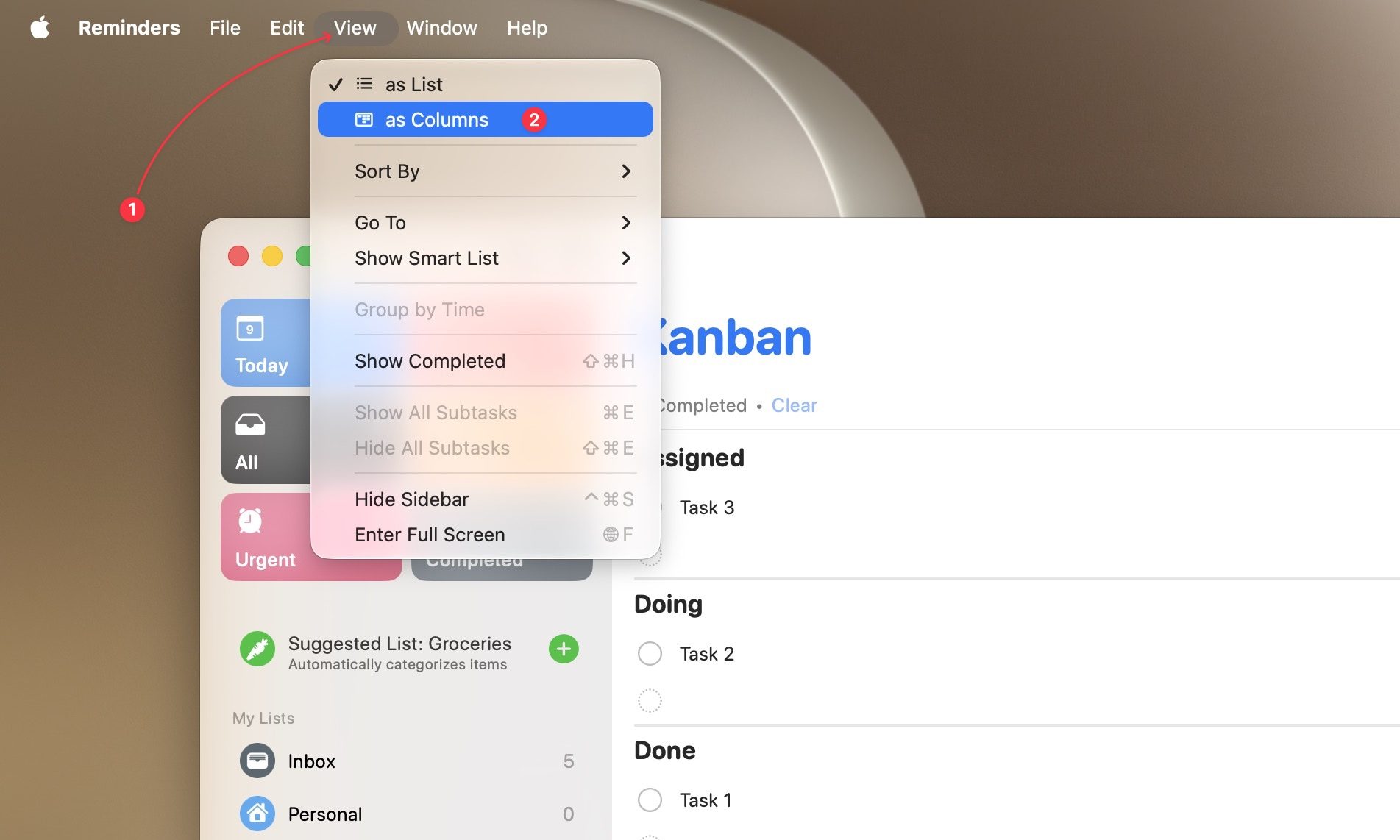
Your list flips into a board layout. From there, you can drag cards between columns and click the checkmark to finish tasks.
Setting up a Kanban board on iPhone
The good news is you do not have to build this twice. Since Reminders syncs across your devices, any board you create on Mac will appear on your iPhone. But if you would rather start there instead, the process is nearly identical.
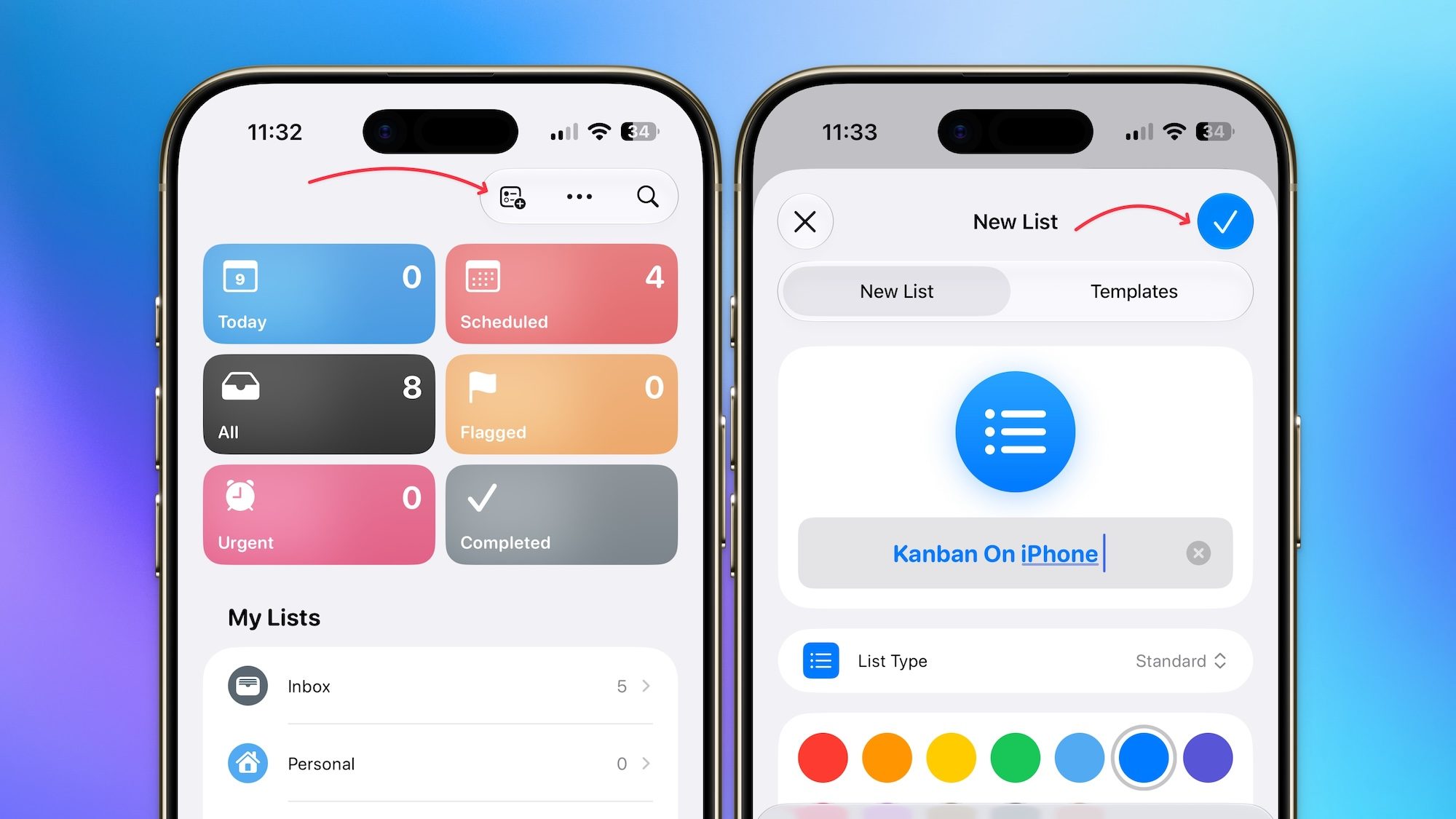
Open Reminders and tap the add list button in the top-right, then give it a name and hit the checkmark to save it.
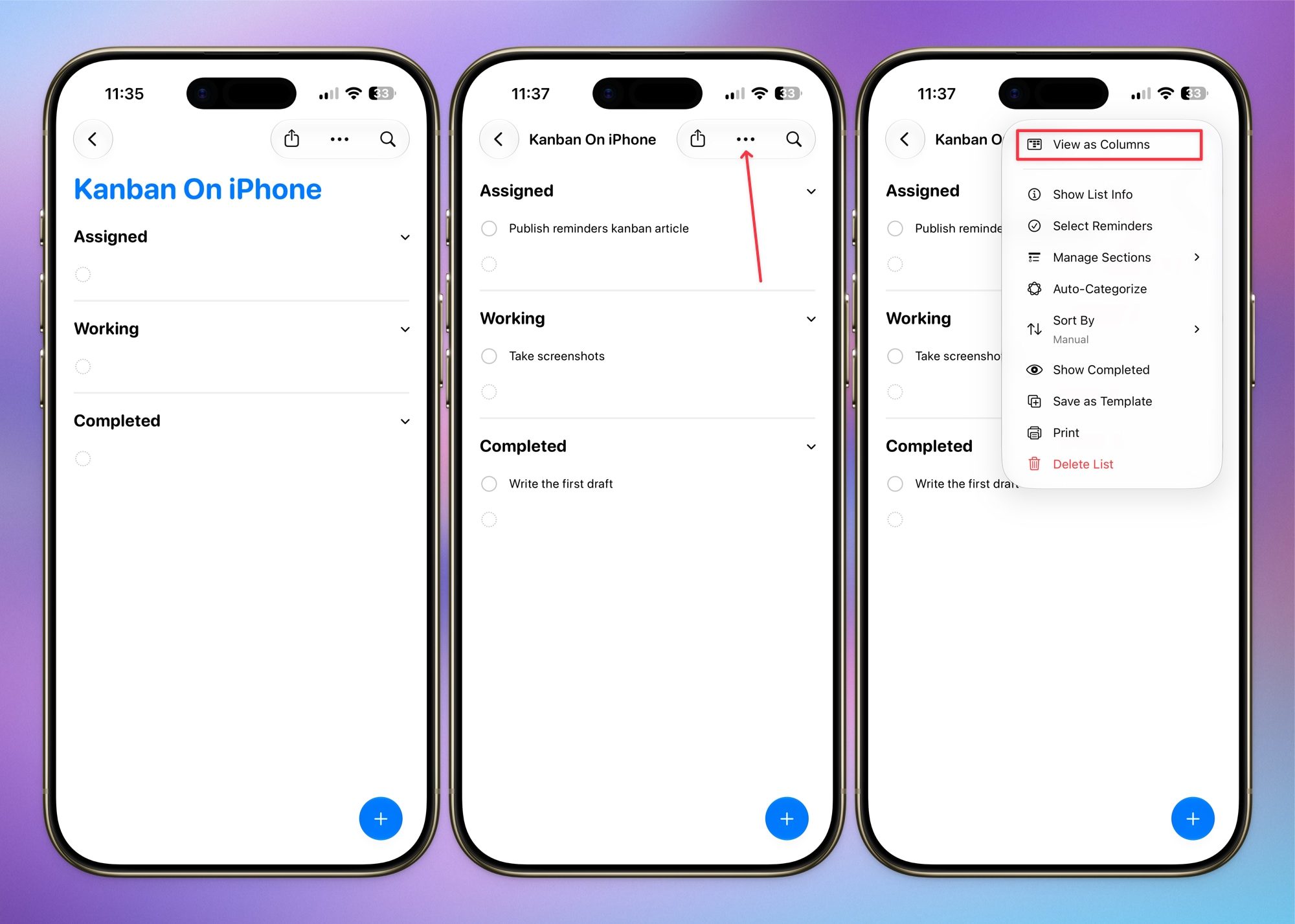
Next, tap the three-dot menu inside your new list and use the New Section button to add a section. Similarly, use the New Section button to add as many sections as you want.
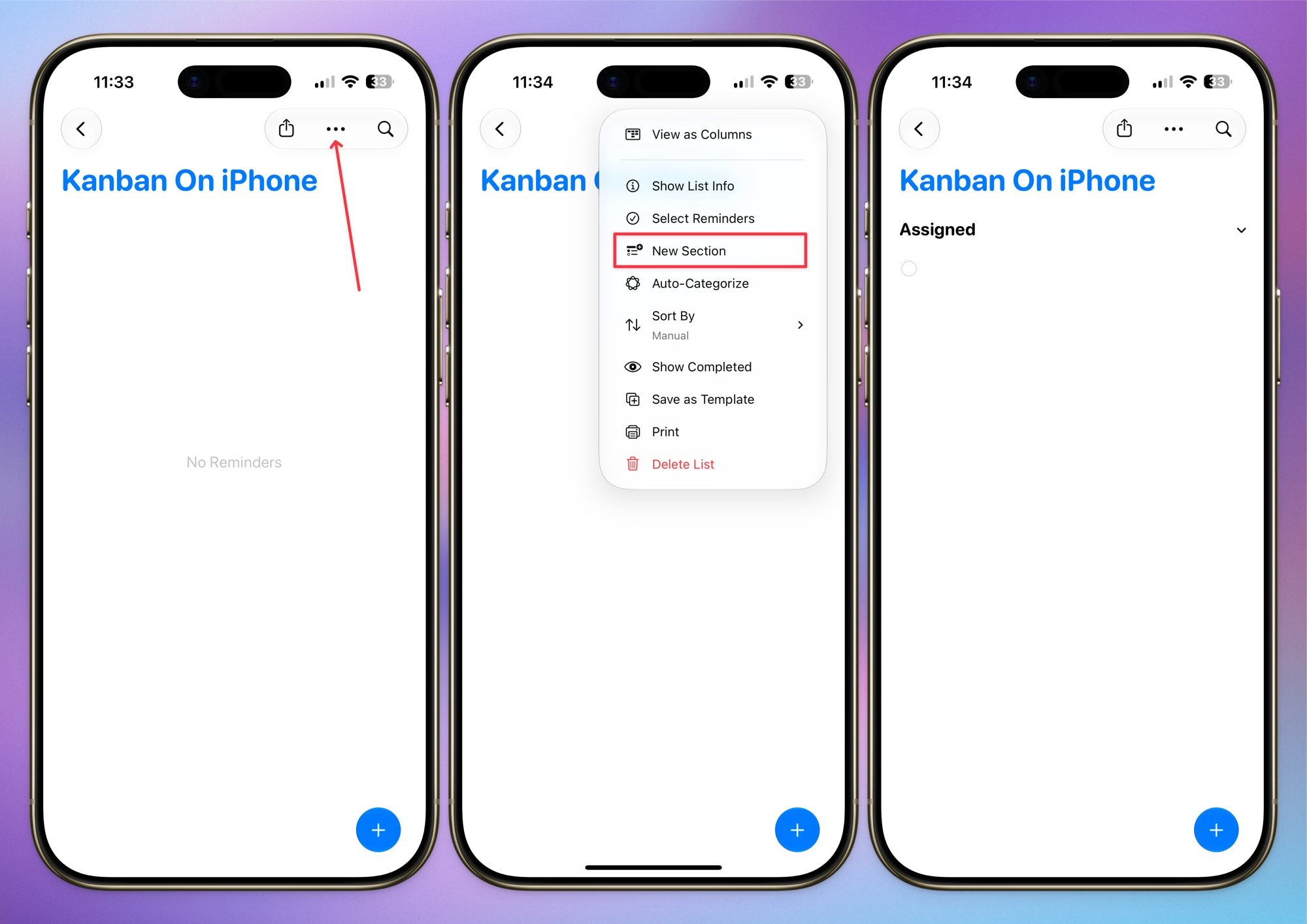
Once your sections exist, start adding tasks under the section they belong to. When you are ready to see everything laid out as a board, tap the three-dot menu again and select View as Columns. Just like that, your plain list turns into an actual Kanban board.
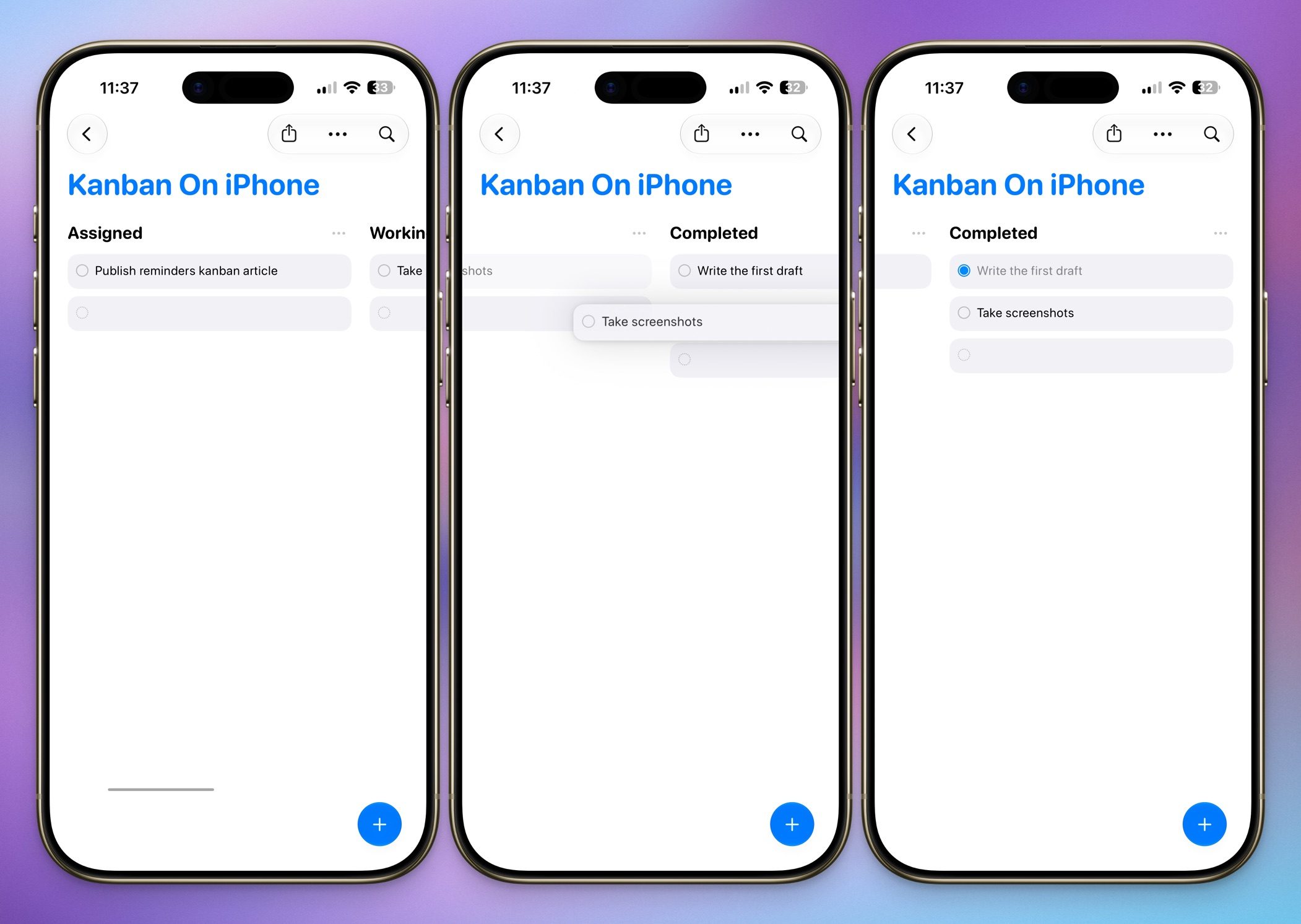
Moving a task is as easy as holding and dragging the card from one column into the next. When something is complete, tap the checkmark circle, and it will disappear from the board.
A few things worth knowing
Switching to Column view does not take away from what you already use Reminders for. You can still attach due dates, notes, images, and subtasks to any task sitting inside a column, so nothing is lost in the process.
You also do not have to stop at a basic three-column setup. Add as many sections as your workflow actually needs. Mine ended up looking a lot more detailed than Assigned, Doing, and Done.
Why this actually changed how I use Reminders
I run a fairly involved workflow for planning and publishing content, and before this, I was juggling separate apps for regular tasks and projects. Now I set up sections for every stage a task passes through, from idea to research to drafting to editing, and I can watch everything move across the board in one glance.
This is not going to replace a dedicated project management tool if you are running a large team or need heavy automation. But if you want a lightweight way to actually see your workload instead of scrolling through an endless checklist, this hidden Column view gets the job done, and it is already sitting on your phone for free.
If you have not tried it yet, give it a shot. Once you set up your first board, going back to a plain checklist feels almost impossible.


