


One of my favorite things about macOS is its support for Menu Bar apps. These apps are small, live in your Menu Bar, and help you perform tasks without launching a full-blown app.
Since there’s only a limited number of Menu Bar apps you can install, before it becomes a cluttered mess, I treat it is a prime real estate. Every app wants to park itself up there, but only a few actually earn their spot.
After years of installing and uninstalling apps, I have settled on five that I genuinely use every day. There are a few more apps that have a place in my Menu Bar, such as Supercharge and CleanShot X. But I have already covered them in detail before, so they are not getting a spot here.
Klack
I will start with the most fun app on this list: Klack. If you love the satisfying clack of a mechanical keyboard but don’t want to buy one, or you are always on the move and cannot carry one, Klack is your answer. The app simulates mechanical keyboard typing sounds, and it is an absolute joy to use.
You get seven different switch options to choose from. My personal favorite is the Super Red switch, which delivers a nice thunky sound effect. Every keystroke sounds as if I am using a premium mechanical keyboard.
You can also add click sound effects and a ding sound when you hit the return key, which is a lovely touch. I have assigned a keyboard shortcut to toggle it on and off, so it only works when I am using the built-in keyboard on my M1 MacBook Pro. If you write a lot, this will be money well spent.
Get Klack
PopClip
PopClip is one of those apps that, once you start using it, you wonder how you ever lived without it. Whenever you select text on your Mac, PopClip opens a small toolbar with actions you can perform, like copy, paste, search, translate, and more.
What makes PopClip special is the vast extension support. You can add extensions for almost any app you use, making it a powerful text productivity tool that lives quietly in your Mac’s Menu Bar.

My most-used extensions are “clip to DEVONthink”, which adds the selected text to my DEVONthink database, a word counter that tells me the word count of selected text, a translator to translate selected text into English, and a text-case formatter, among money others.
There’s literarily hundreds of extensions you can choose from. PopClip is one of my favorite productivity apps and one of the first ones I always install on a new Mac.
Get PopClip
Lungo
Lungo solves a problem that has annoyed me for years. By default, your Mac will go to sleep after a few minutes of inactivity, which is great for battery life but terrible when you are downloading something in the background or a video export is in progress.
Lungo solves this by keeping your Mac awake for as long as you need it to, and you can set custom durations right from the menu bar. It is a simple app with a simple job, and it does it perfectly. It’s made by the same developer who made one of my favorite Mac apps, Supercharge.

Lungo costs $4, which might be too pricey for an app that performs a single action. If you think so, you can check out Amphetamine, which performs the same function and is available for free in the Mac App Store.
I use Lungo over Amphetamine for two main reasons. Firstly, it has never failed me, while Amphetamine sometimes didn’t work as intended. The second reason is that I get it for free as a part of my SetApp subscription.
Get Lungo
Dot calendar
I have always loved Menu Bar calendar apps. Over the years, I have switched between many of them because of several different reasons. Some of them just went into sunset, some didn’t receive any meaningful feature in quite a while, while some moved to a subscription-based pricing system.
Then I discovered the Dot calendar, and it is everything I ever wanted from a Menu bar calendar app. The UI design is both functional and attractive. You get a monthly overview at the top, a scrollable list of upcoming events below it, a world clock for multiple cities, and a day summary that tells you at a glance how packed or open your day looks.
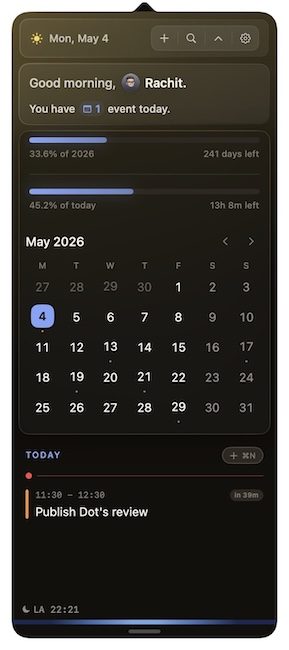
What really sets Dot apart is how well it handles the moments just before a meeting. It surfaces links from your calendar invites automatically, so your Google Doc or Notion page is right there when you need it. The camera preview is another thoughtful touch, letting you check your lighting and mic level before you jump into a call.
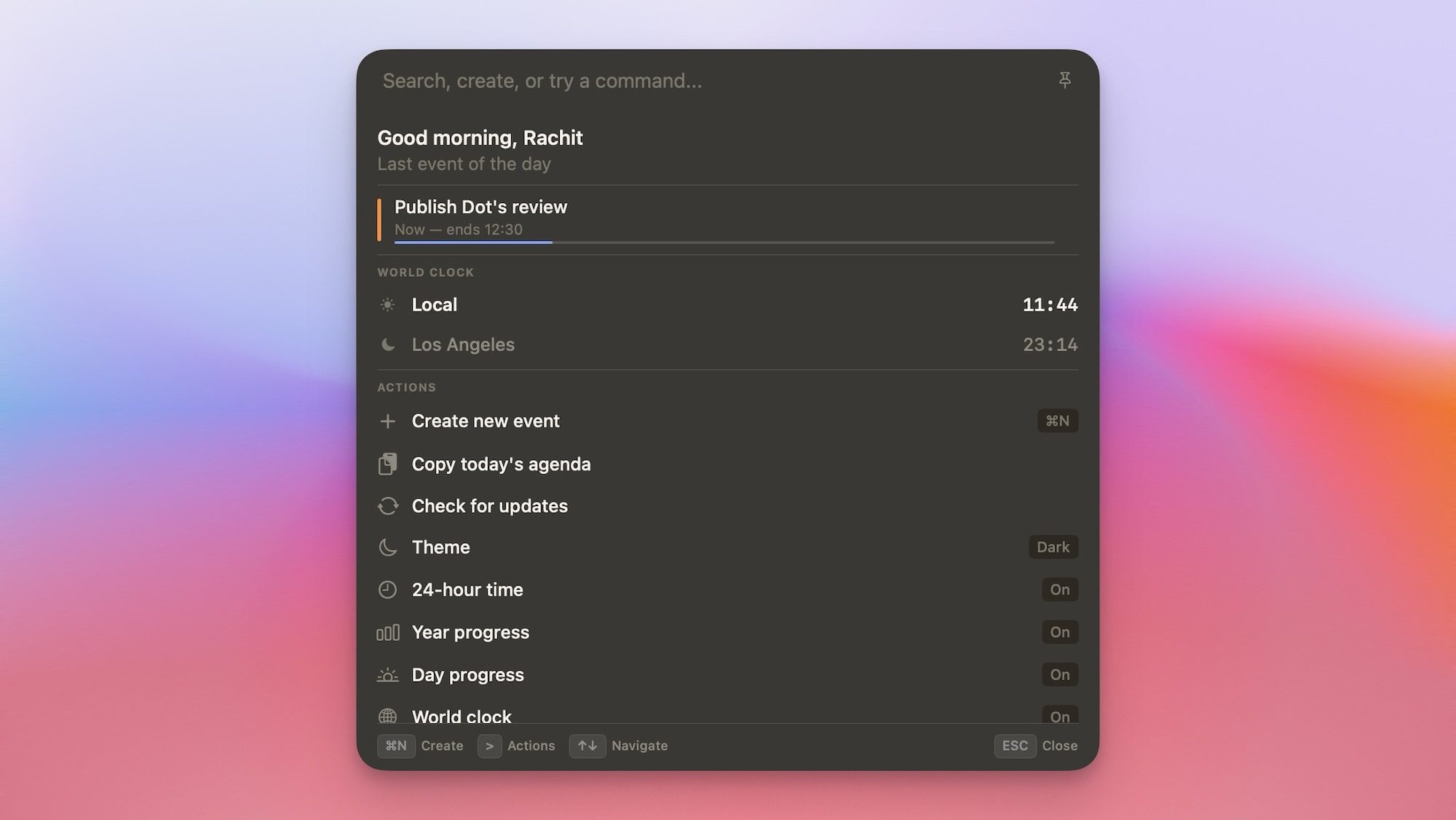
There is also a Command Bar that lets you create events, search your schedule, check world time, and copy your day’s agenda, all without leaving whatever you are working on. I have already covered this app in detail, so go read my impressions of Dot before you decide to hit the buy button.
Get Dot
Default Browser
Changing the default browser on Mac is a multi-step process. You have to open the System Settings app, go to Desktop & Dock Settings → default browser, and change it. I mostly use the Arc Browser, but there are certain website links that I prefer to open in Safari.

This means I have to switch my default browser regularly, and this app makes it a one-click process. I click its icon and select the browser I want to set as default, and that’s it. While the app offers some extra features, I use it for this simple function, and it works perfectly.
Get Default Browser
Want more cool Mac apps?
If you would like to discover some more cool Mac apps, I have covered them in my favorite Mac utilities article, which you can read by clicking the link. I promise you, all the apps mentioned are amazing, and you will find at least one you have never heard of before.